Set up storage areas
Storage areas are the places in your kitchen where you keep stock, such as the Walk-in Cooler, Freezer, Dry Storage, Bar and Cleaning closet. Every product that you count has a home storage area, and you count one storage area at a time. If you pick the right storage areas at the start, counts go fast and reports are easy to read. Storage areas used to be called categories.
What a storage area is
A storage area is a physical place, not a product type. To test a name, ask: "If I walked into the kitchen with a clipboard, where would I stand to count this?"
- ✅ Walk-in Cooler, Reach-in Freezer, Dry Storage, Bar, Cleaning closet
- ❌ Proteins, Dairy, Produce, Cleaning Supplies (those are product types, not places)
If proteins and dairy both live in the walk-in, they both go in Walk-in Cooler. One count covers both.
Fields on a storage area
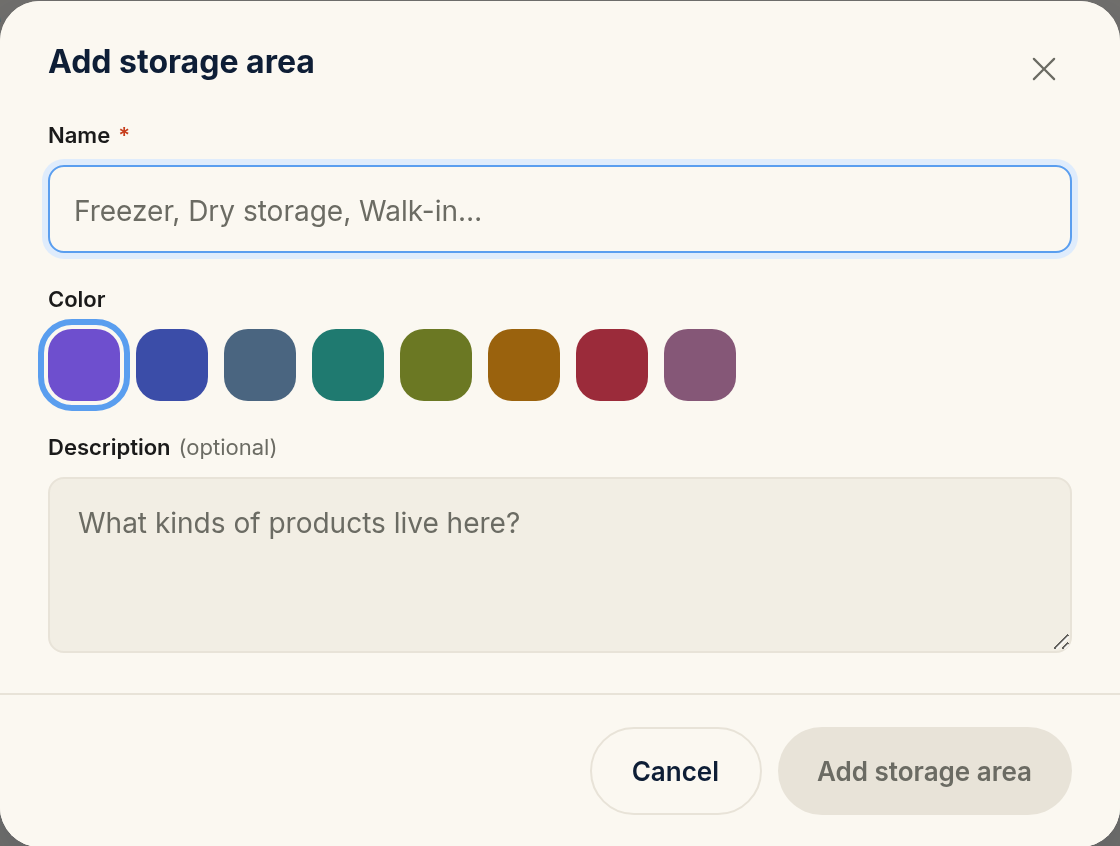
Name (required): what you call the place out loud. Examples:
Walk-in Cooler,Freezer,Dry Storage,Bar.Color: pick a swatch to color-code products and counts in the app. Pick what helps your team scan fast, for example a cool color for cold storage and a warm one for the line.
Description (optional): one line such as "Cold storage near the back door", if the name alone is not clear.
Set the walk order
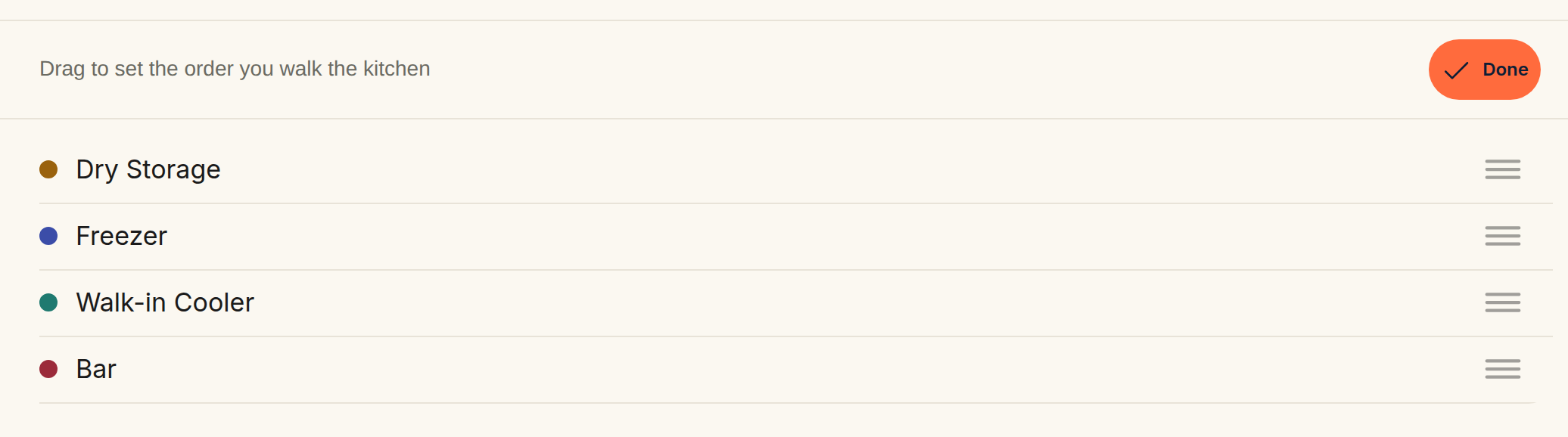
On the Storage Areas page, tap Reorder. Then drag the storage areas into the order that you walk the kitchen. Every inventory count shows the storage areas in this order. For example, if you always start at the walk-in and end at the bar, drag the walk-in to the top.
Until you set a walk order, the storage areas stay in alphabetical order, and a new storage area goes into its place by name. After you reorder, a new storage area goes to the bottom of the list. Drag it into place.
How many storage areas to have
Three to six storage areas are right for most restaurants. With too few, such as one large "Kitchen" storage area, each count is hard to manage. With too many, such as 15, each count has too many stops.
Make one storage area for each place that your staff walks to. Do not make one for each shelf or for each type of product.
One product in several places
Some products sit in more than one place. For example, you keep butter in the walk-in and in the bakery fridge. The storage area that you pick on the product is its home storage area. An extra place is another storage area where Rinvy also counts the product.
- On the Products page, open the product to edit it.
Under Also stored in, tap each storage area where the product also sits. Keep None if it sits only in its home storage area.
- Save the product.
Rinvy then asks for the product in each of its places during a count, and adds the places up into one total. Recipes, costs, reports and ordering see one product with one total. On the Products page, the product shows a chip such as +1 area.
Status-tracked, non-inventoried and auto-tracked products cannot have extra places. If you change a product to one of those types, Rinvy removes its extra places. See choose the right product type.
A product that you add to a place goes to the end of the count order of that place.
On the Storage Areas page, a storage area that is an extra place for some products shows a line such as Also counted here: Butter, Cream, Milk +2 more.
If you remove an extra place from a product, Rinvy stops asking for the product there. Past counts keep their numbers. The next count of the home storage area leaves the removed place out of the total.
See what each place holds
On the Inventory page, a product with extra places shows once under each of its places. Each row shows the quantity in that place, the total, and the other places, for example of 20 kg total · Bakery fridge 7 · Freezer 8. The numbers stay current between counts:
- When you receive a delivery, pick Put away in for the line. When you log waste, pick Taken from. When you run prep, pick where each ingredient comes from and where the result goes. If you pick nothing, Rinvy uses the home storage area.
- When stock moves from one place to another, tap the product on the Inventory page and use Move stock. The total stays the same. If you move more than a place holds, that place shows a negative number, so you can see that something was not recorded.
- The next count of a place replaces what Rinvy expected there.
The Inventory Value report shows the same split, and a Value by storage area card when some products are in more than one place.
If early access is off for your kitchen, Also stored in shows only the places that the product already has. You can remove a place, but you cannot add one.
To learn how a count works with several places, see Count a product in more than one place.
What happens when you delete a storage area
You cannot delete a storage area that is the home storage area of an active product. First move those products to a different storage area, or archive them.
An extra place does not stop the delete. Rinvy removes the storage area from each product that is also counted there, and the delete message tells you how many products that is. Past counts keep their numbers. On the Inventory page, in count history and in reports, a place that you deleted shows as Deleted storage area.
Common mistakes
Making storage areas for product types
"Proteins" or "Cleaning Supplies" is not a storage area. It is a product type. A storage area is a place. If two product types sit in the same place, they share a storage area.
Splitting one walk-in into several storage areas
Do not make "Walk-in shelves 1–3" and "Walk-in shelves 4–6". You walk through the same door to count both. Make one storage area for each trip.
Forgetting to reorder
New storage areas do not sort themselves into your walk order. On day one, tap Reorder and drag them into place. It takes 30 seconds, and it saves time on every count after that.