Count a product in more than one place
Some products sit in more than one place. For example, you keep sacks of potatoes in dry storage and a prepped batch in the walk-in. Give the product an extra place: another storage category where Rinvy also counts it. During a count, the product shows in the count list of each of its places. You count what is in front of you, and Rinvy adds the places up into one total.
When to use this
Use extra places when one product sits in two or more storage areas, and you count those areas one at a time. Without extra places, you have two choices, and both cause problems:
- You add up the places in your head and enter one number in one category. This is slow, and a shelf you forget goes unnoticed.
- You make a second product for the second place. Then costs, recipes, orders and reports see two products instead of one.
With extra places, the product stays one product with one total. Only the count asks for it in each place.
Before you start
- Early access must be on for your kitchen.
- The product must be counted by quantity. Status-tracked, non-inventoried and auto-tracked products cannot have extra places. See choose the right product type.
- Each place is a storage category, so set up your categories first. See set up storage categories.
- To give a product an extra place, you must be an Owner or a Manager. Anyone who can count (Owner, Manager or Staff) can count the product in each place.
Add an extra place
The category you pick on the product is its home category. Deliveries, waste and prep do not say which place they went to, so Rinvy puts them in the home category.
On Products, open the product to edit it.
Under Also stored in, tap each category where the product also sits. Keep None if it sits only in its home category.
Save the product. On the Products page, the product now shows a chip such as +1 location.
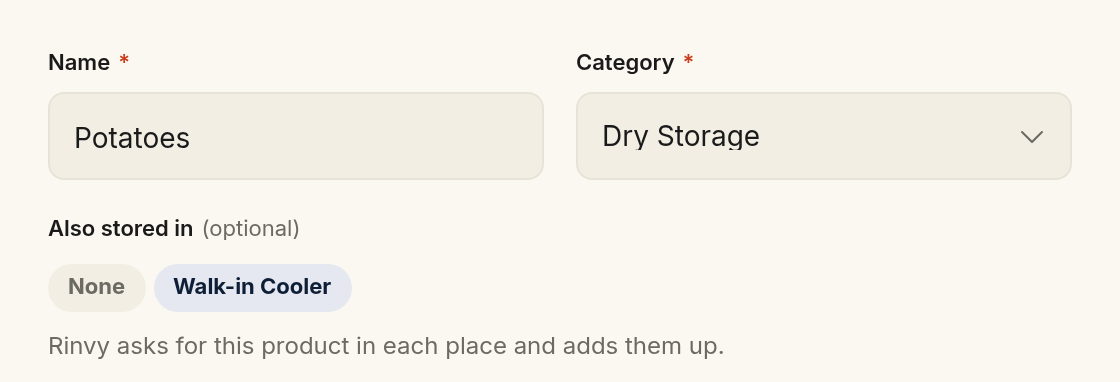
A product that you add to a place goes to the end of the count order of that place. On the Categories page, the place shows a line such as Also counted here: Potatoes.
To set up many products at once, use the Also counted in column of the products CSV. It lists the extra places of each product, separated by ;. The import reads the column for the new products it creates. See import products from CSV.
Count each place
In a count session, open one of the product's categories. The product is in its count list.
Enter only the quantity in this place, not the total. The field starts with the last count for this place.
Save your counts, open the next category, and count the product there too.
A blue chip on the row names the other places, for example also in Dry Storage. Under the product name, a line shows the total. When the field is empty, the line shows what the other places hold, for example 50 lb in 1 other place. When the field has a number, the line shows this place and the total, for example 8 lb here · 58 lb total across 2 places. The total changes as you type.
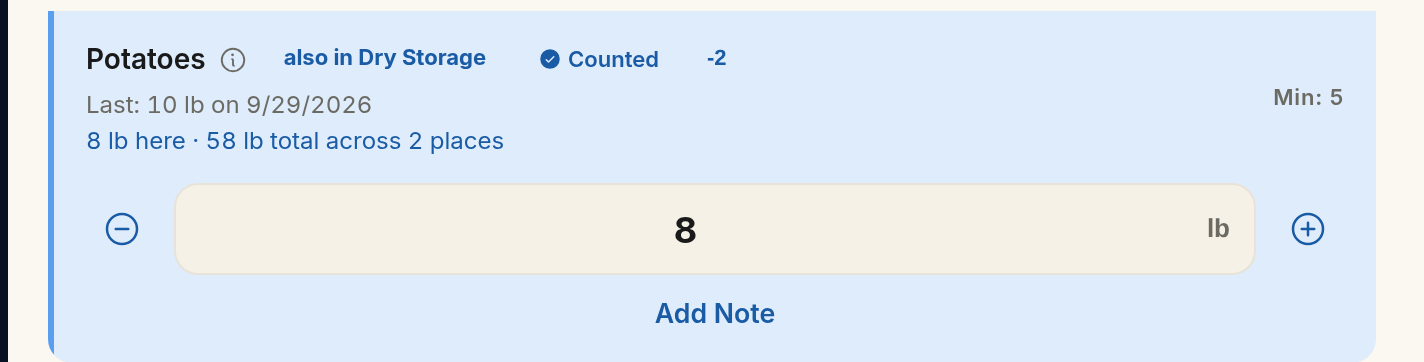
In speed mode, the product's card shows the same chip and total.
Places you skip
You do not have to count every place in every session. If you skip a place, Rinvy keeps its last count and adds it to the total. The kept number keeps the name and time of the person who counted it. A partial count never makes stock look lower than it is. Rinvy does not mark a category as counted because of a number it kept.
The home category is different, because deliveries, waste and prep go there. If you skip the home category, Rinvy keeps its last count plus everything that came in or went out since then.
Counting only the walk-in
Last week you counted 50 lb of potatoes in Dry Storage, the home category, and 10 lb in the Walk-in Cooler. That is 60 lb in total. Then a delivery of 50 lb arrived. This week you count only the Walk-in Cooler and find 8 lb. Rinvy keeps Dry Storage at 100 lb: the 50 lb you counted plus the 50 lb delivery. The new total is 108 lb.
Complete the session
When you tap Complete session, the message names up to three products that have a place you did not count, for example "Potatoes: counted in Walk-in Cooler, not yet in Dry Storage." If there are more, it gives their number. You can still complete the session.
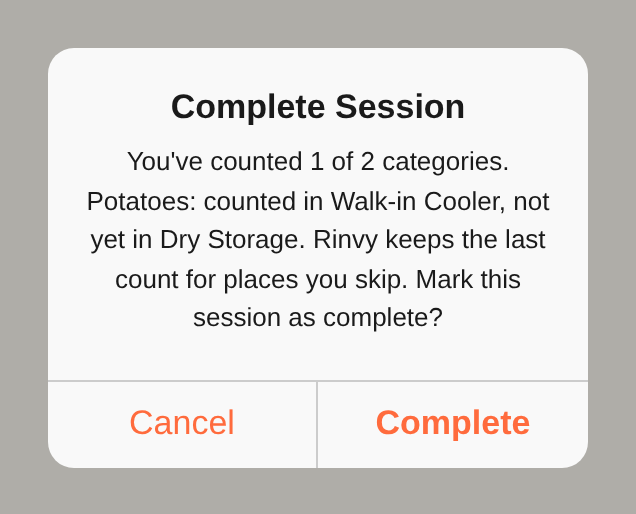
In speed mode, the review screen lists these places under Other places to count. Tap one to save your counts and count that place next. If you are offline and have counts to save, the tap takes you back to the category list. Rinvy sends your counts when you are back online.
See the split
On the Inventory page, the product shows its total. Under the name, it shows the quantity in each place from the last count, home category first, and the date of that count. The total can be different from the split, because it also includes the deliveries, waste and prep since the count.

A past session in Inventory history shows the split of that session. A number that Rinvy kept from an earlier count shows (carried).
Fix a count after the session
Open the session in Inventory history and tap the product. The edit form shows one field for each place and adds them up. A place that Rinvy kept from an earlier count shows (carried forward).
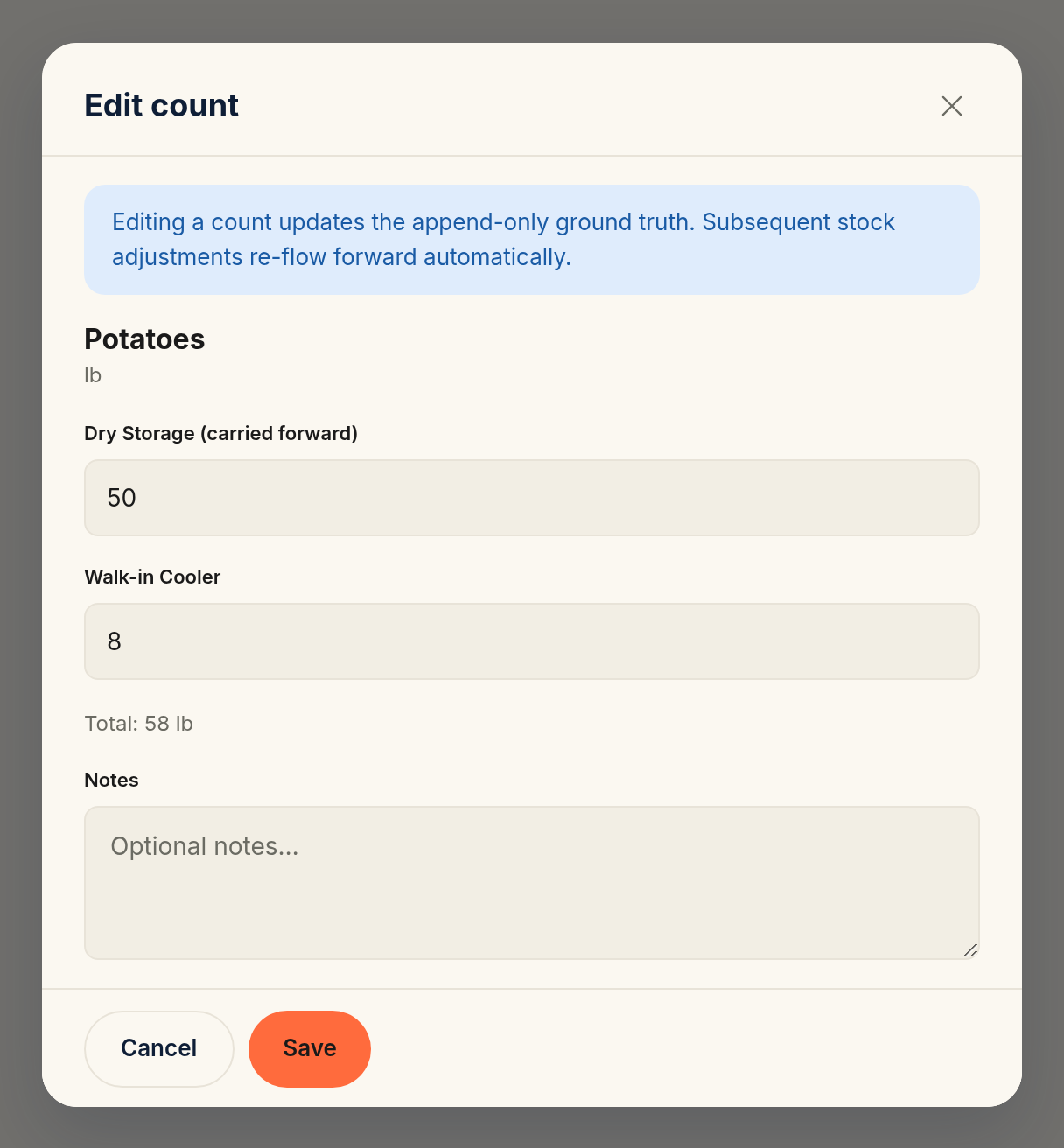
Change the place that is wrong and save. The total follows. If later counts kept the old number for that place, Rinvy corrects them too. To learn who can edit a past count, and when, see editing past counts and receipts.
Remove a place or delete a category
If you remove an extra place from a product, Rinvy stops asking for the product there. Past counts keep their numbers. The next count of the home category leaves the removed place out of the total, so count the stock where it sits now.
If you delete a category that is an extra place, the delete still goes ahead. Rinvy removes the category from each product that is also counted there, and the delete message tells you how many products that is. Past counts keep their numbers. On the Inventory page, in count history and in the edit form, the place shows as Deleted location. It keeps its count, and you cannot edit it.
If early access is off for your kitchen, Also stored in shows only the places that the product already has. You can remove a place, but you cannot add one.
Copy to another kitchen
When you copy products to another kitchen that you own, their extra places come along if early access is on in that kitchen and it has the same categories. The copy does not make new categories for extra places. The result lists each place it had to skip. A product that is already in that kitchen keeps its own places. The copy does not add places to it. See copying between kitchens.
Common mistakes
Entering the total in each place
Enter only what is in front of you. If you enter the whole total in each place, Rinvy adds the places up and the stock doubles.
Making a second product for the second place
Two products split the cost, the recipes and the order list. Give the one product an extra place instead.
Putting a delivery away in the middle of a count
Rinvy puts deliveries in the home category. If a delivery goes into an extra place after you counted that place, and before you count the home category, no count sees it. Put deliveries away before you count, and count all the places of a product in one session.
Skipping the same place for weeks
A kept number is only as true as the count it came from. Count each place now and then, so the total stays true.