Transfers between kitchens
If one kitchen sends stock to another — a commissary that restocks a satellite, or two locations that lend each other a case — record it as a transfer. The stock leaves the sending kitchen and arrives in the receiving kitchen in one step, so neither kitchen's numbers go wrong.
Without a transfer, the sending kitchen's next count shows stock that vanished (it reads as usage or waste), and the receiving kitchen's count shows stock that appeared from nowhere (it reads as a missing delivery).
What you need
- A restaurant group. Both kitchens must be in the same restaurant group. Transfers only show up in a group of two or more kitchens.
- Pro on both kitchens.
- A role in both kitchens. You need to be Owner, Manager or Staff in the kitchen that sends and in the kitchen that receives. A Viewer can see the transfer log but can't send.
Send stock
Always send from the kitchen the stock is leaving. Switch into that kitchen first.
On Home, open the Log menu and pick Send stock. You can also tap Send stock on the Transfers page, or pick Send to another kitchen from a product's menu on Products (desktop).
Send to lists the other kitchens in your group where you can transfer. If there is only one, it's already picked.
Sent on starts on today. Change it if you're recording a transfer that happened earlier.
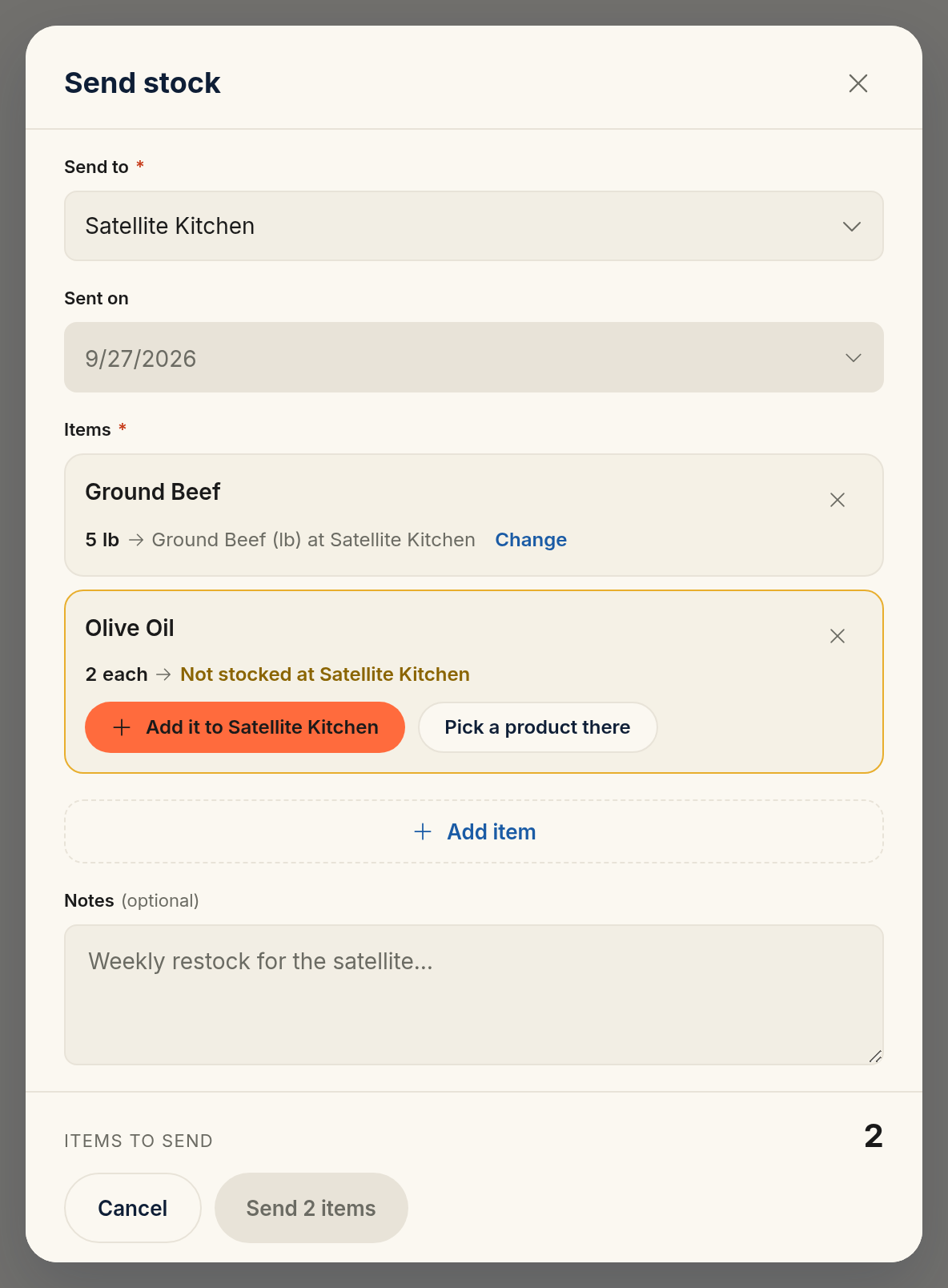
Tap Add item, pick a product, and enter how much you're sending in the product's counting unit. Rinvy shows how much you have in stock on that date and won't let you send more. Tap Add to transfer, and repeat for each product.
Each line shows the product it arrives as in the other kitchen, for example "5 lb → Ground Beef (lb) at Satellite Kitchen". Tap Change to pick a different product there.
Tap Send N items. The transfer shows up on the Transfers page and in both kitchens' activity.
When the other kitchen doesn't stock the product
Each kitchen has its own products, so Rinvy has to know which product the stock arrives as. It looks for a match in the receiving kitchen: first a product that was copied from this one (or that this one was copied from), then a product with the same name and the same counting unit.
If there is no match, the line says Not stocked at kitchen, and Send stays off until you fix it. You have two choices:
- Add it to kitchen creates the product in the receiving kitchen, as a copy of yours. It brings the product's storage category, supplier, pack options and unit conversions, the same as copying between kitchens. It doesn't bring stock or costs. The next time you send this product, Rinvy matches it on its own. You only see this button if you can add products in the receiving kitchen (Owner or Manager there).
- Pick a product there lets you choose one of the receiving kitchen's own products.
If the two products are counted in different units, for example cases here and pounds there, Rinvy converts the quantity. It needs a unit conversion on one of the two products to do that. If there isn't one, the line warns you and Send stays off. Add the conversion to either product, or pick another product.
The transfer log
The Transfers page lists every transfer this kitchen sent or received, grouped by week. Use Sent and Received to filter. Each row shows the other kitchen, the date, the number of items, the value and who sent it.
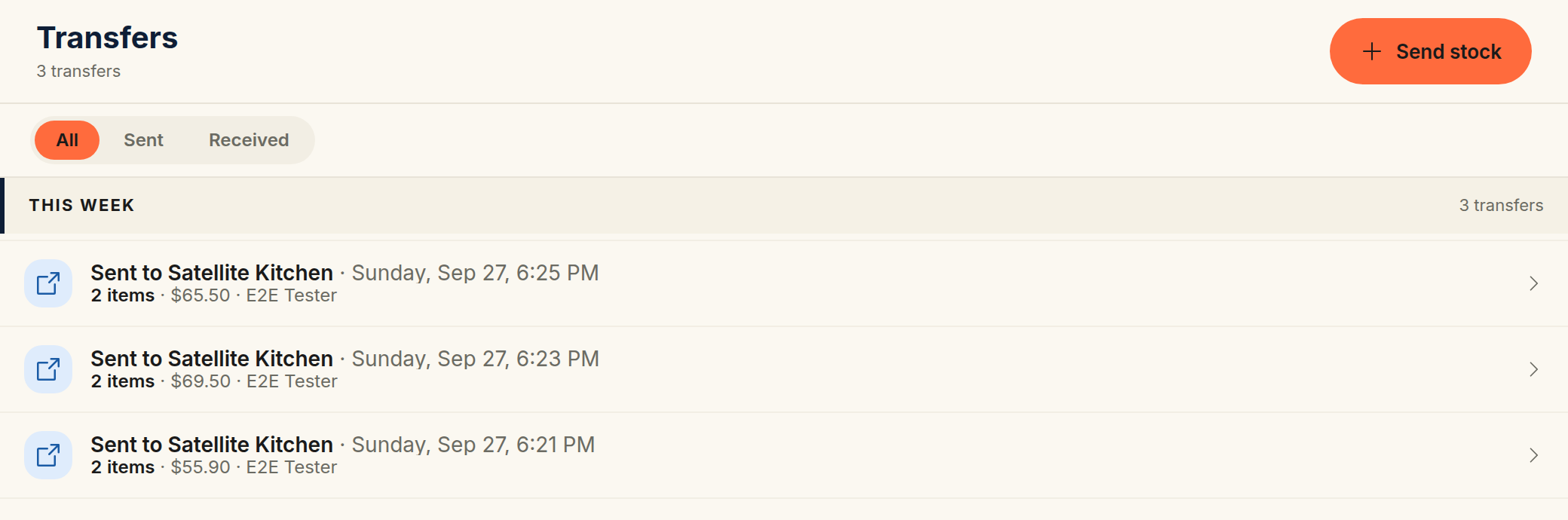
Tap a row to see its items. Each line shows the product in this kitchen and what it became in the other kitchen, for example "Arrives as 80 lb Chicken at Satellite Kitchen".
Transfers also appear in Activity, as Sent to kitchen in the sending kitchen and Received from kitchen in the receiving kitchen. Use the Transfers chip to show only transfers.
Undo a transfer
Open the transfer from the Transfers page, tap Undo transfer, then Confirm undo. The stock goes back to the sending kitchen and leaves the receiving kitchen. You can do this from either kitchen.
To undo a transfer you need to be Owner or Manager in both kitchens.
How transfers show in your numbers
A transfer isn't a purchase and it isn't usage. Rinvy keeps it separate everywhere:
- Cost. The receiving kitchen takes the stock at what it cost the sending kitchen. That cost blends into the receiving kitchen's average cost for the product, like a delivery would.
- Food cost. The Food Cost report shows Transfers in and Transfers out as their own lines. Stock you sent away doesn't count as food you used, and stock you received isn't counted as a purchase.
- Usage, burn rate and the order list don't count stock you sent away as usage.
- Inventory health expects the stock that arrived or left, so a transfer doesn't show as unexplained shrinkage or a missing delivery.
- Spending, the accounting export, price alerts and supplier scorecards ignore transfers. No money changed hands with a supplier.
Common mistakes
Sending from the wrong kitchen
You always send from the kitchen you're in. If you're in the kitchen that received the stock, switch to the sending kitchen before you record the transfer.
Logging a transfer as waste and a delivery
Waste in one kitchen and a receipt in the other gets the stock right but the money wrong: the sending kitchen's waste goes up, and the receiving kitchen shows a purchase that never happened. Use a transfer instead.
Dating a late transfer as today
If either kitchen has counted since the stock moved, that count already shows it. Dated today, the transfer moves the stock a second time. Set Sent on to the day the stock actually moved, so Rinvy fits it in before the count.